Preview actions
Preview actions are used to preview files like Markdown and images in the editor.
You can also use preview actions to show a shareable QR code view and close the preview window when needed.
Show slides
To show slides with Demo Time, you can make use of the openSlide action.
{ "action": "openSlide", "path": "<relative path to the file>", "slide": "<slide number (1-based) (optional)>"}action: openSlidepath: <relative path to the file>slide: <slide number (1-based) (optional)>Read more about it in the slides section of the documentation.
Preview Markdown file
To preview a markdown file in the editor, use the markdownPreview action. The markdownPreview action takes a file path as an argument.
{ "action": "markdownPreview", "path": "<relative path to the file>"}action: markdownPreviewpath: <relative path to the file>Preview image
To preview an image in the editor, use the imagePreview action. The imagePreview action takes a file path as an argument.
{ "action": "imagePreview", "path": "<relative path to the file>", "theme": "<relative path to CSS file>"}action: imagePreviewpath: <relative path to the file>theme: <relative path to CSS file>Custom theming
Create a CSS file, and adapt the styling with the .preview_view class.
.preview_view { background-color: #000;}Show QR code
To display a QR code in the preview window, use the showQR action.
The showQR action requires a url and supports optional metadata fields to customize the screen:
qrLayout: controls the slide layout (see below)topText: small text above the QR codetitle: large title textdescription: explanatory text below the linklogo: URL to a logo image shown next to the QR code (only used bydefaultandreversedlayouts)
Layouts
The qrLayout field accepts one of six values:
| Value | Description |
|---|---|
default | QR code on the right, logo on the left (side-by-side) |
reversed | QR code on the left, logo on the right (side-by-side) |
stacked | QR code centered at top, title/description below |
minimal | QR code and URL only |
text-left | Title and description on the left, QR code on the right |
text-right | QR code on the left, title and description on the right |
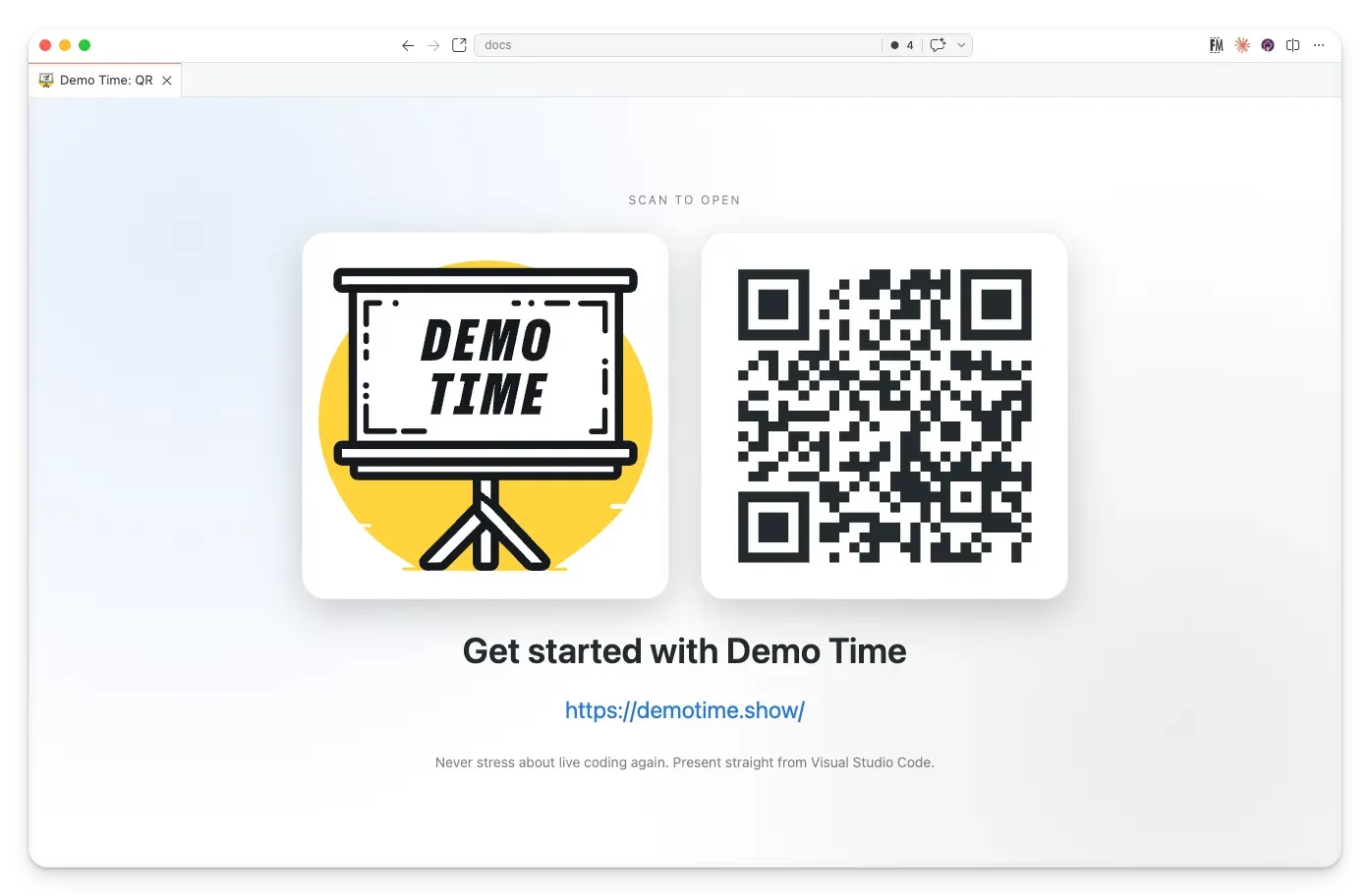
{ "action": "showQR", "qrLayout": "default", "url": "https://demotime.show", "topText": "Scan to open", "title": "Get started with Demo Time", "description": "Never stress about live coding again. Present straight from Visual Studio Code.", "logo": "https://demotime.show/logo.svg"}action: showQRqrLayout: defaulturl: https://demotime.showtopText: Scan to opentitle: Get started with Demo Timedescription: Never stress about live coding again. Present straight from Visual Studio Code.logo: https://demotime.show/logo.svgHide QR code
To hide the QR code and close the preview window, use the hideQR action.
{ "action": "hideQR"}action: hideQRClose preview window
To close the preview window explicitly (slides, image preview, or QR preview), use the closePreview action.
{ "action": "closePreview"}action: closePreview