Exporting your slides
When you are done with your slides, you can export them to PDF. This is useful for sharing your slides with others or for printing them.
You can export your slides using the Demo Time: Export slides to PDF command in Visual Studio Code. This will generates a PDF file in the root of your project with the name demotime.export.pdf.
Exporting slides
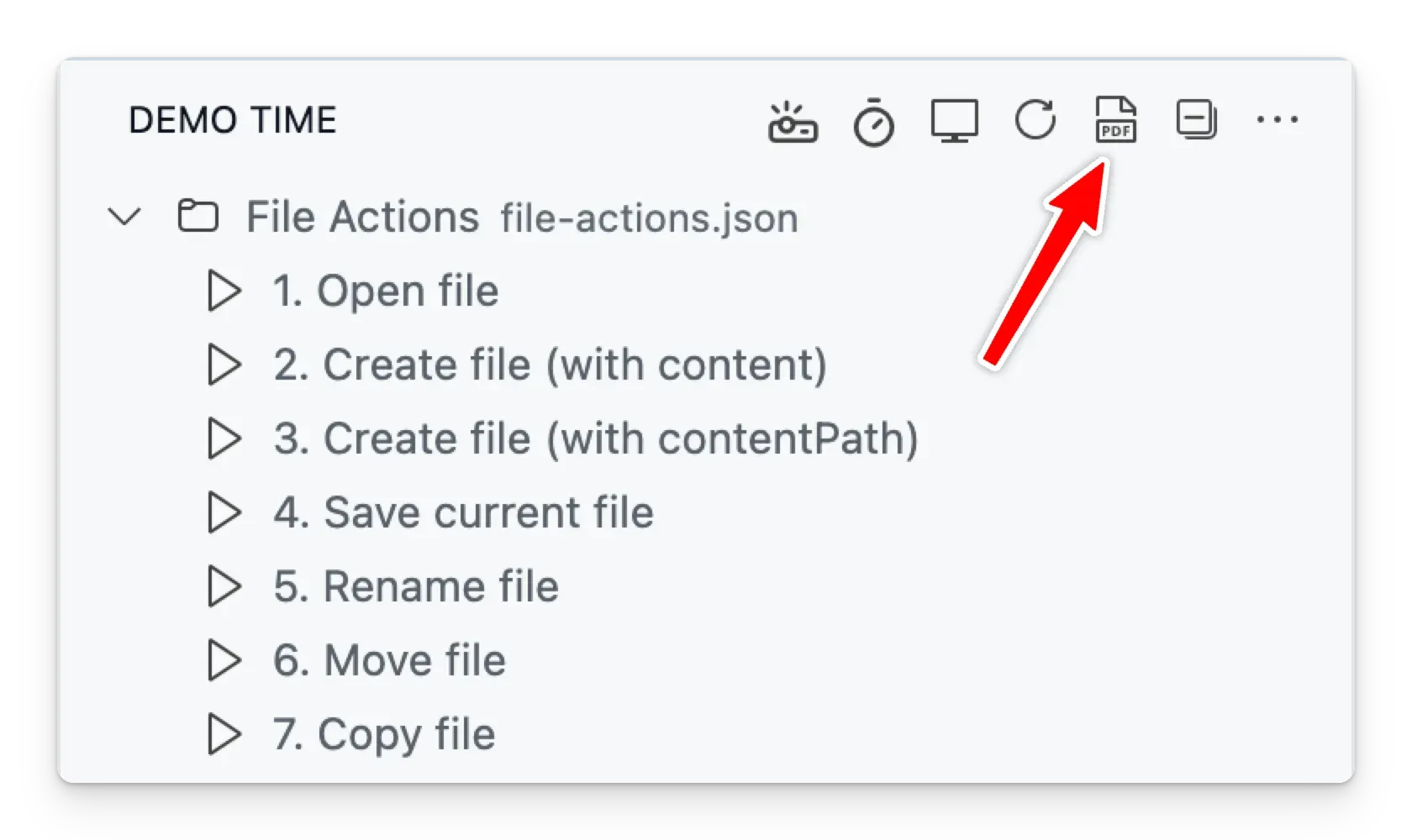
As mentioned, you can run the Demo Time: Export slides to PDF command in Visual Studio Code or you can click on the PDF action in the Demo Time panel.
Each slide is exported in its final state: all dt-list items and dt-show content are visible, and dt-hide content is hidden. A dt-action shows as a static button or link.
Hidden slides (hide: true) are left out of the export. To include them, enable the demoTime.pdfExport.includeHiddenSlides setting.
Slides with autoFit: true are scaled down in the export, like in the slide preview, when their content doesn’t fit.
Speaker notes
The speaker notes of your slides are left out of the export by default. Use the demoTime.pdfExport.notes setting to add them:
| Value | Result |
|---|---|
none (default) | The PDF only contains the slides. |
below | The notes are added below the slide, on the same page. The page gets longer to fit the notes. |
page | The notes are added on a separate page after the slide. |
Slides without notes are exported as usual.
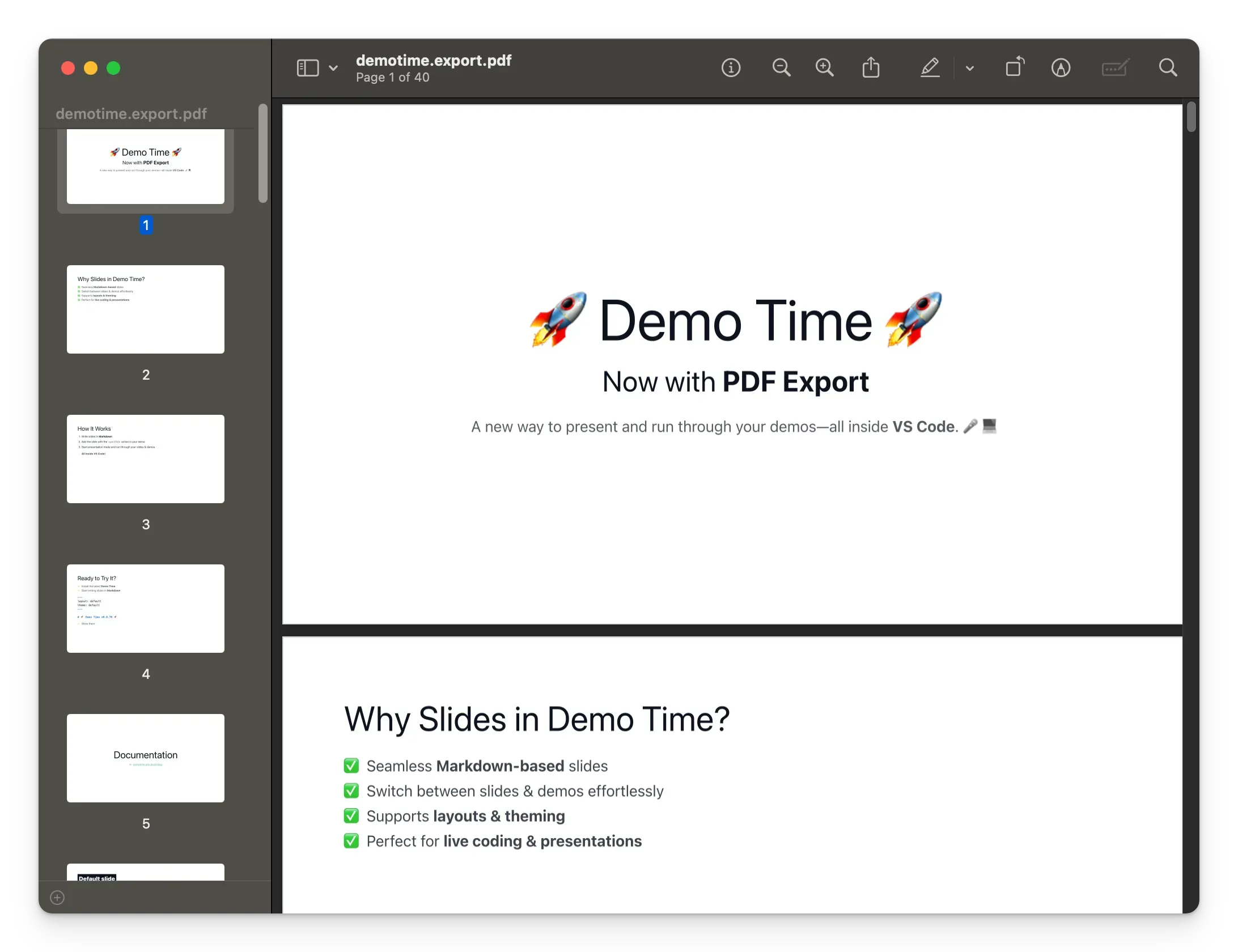
Here is a sample of the exported PDF file: