
Settings
By using the Demo Time: Settings command, you can quickly access and modify the settings of the Demo Time extension.
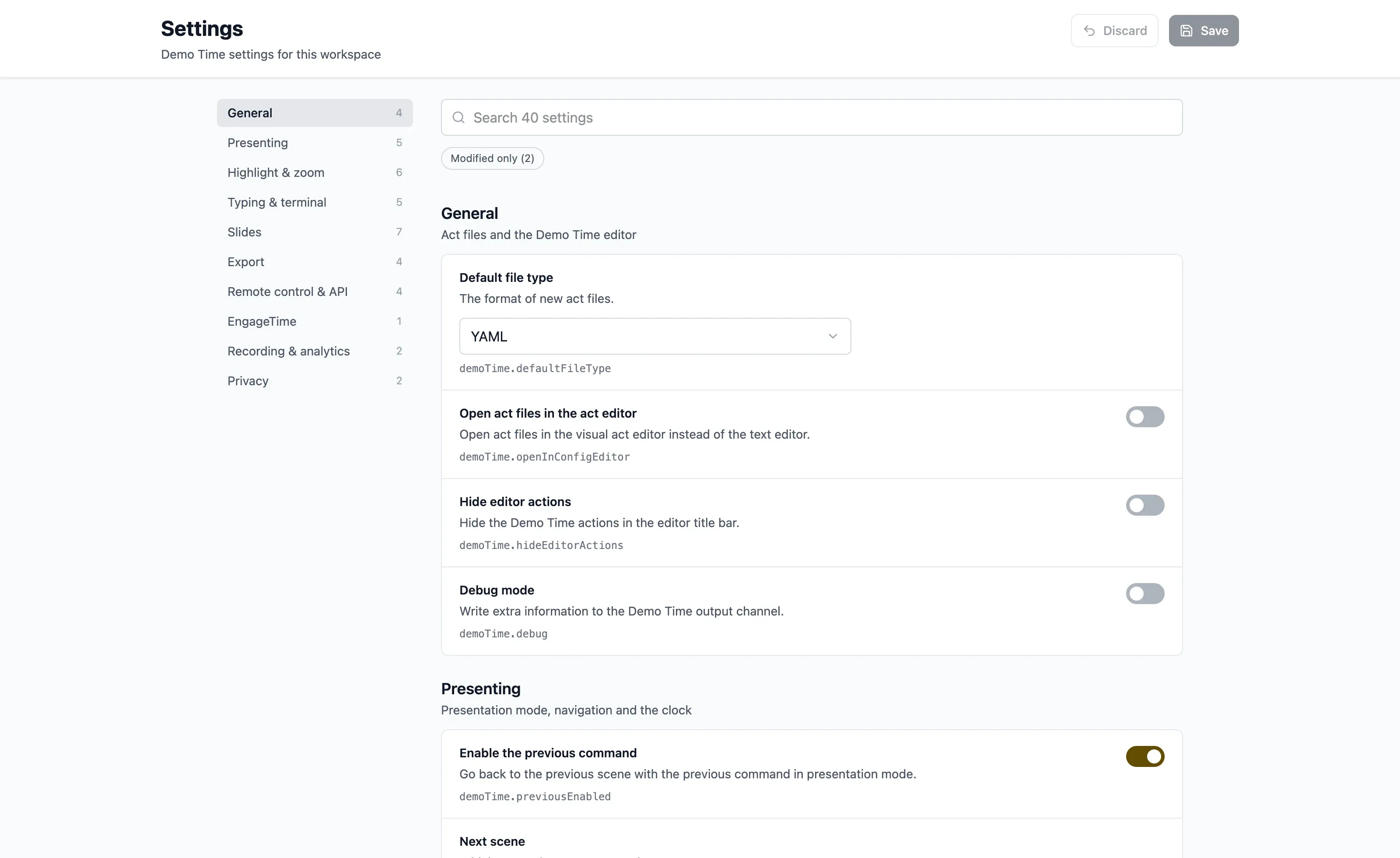
The settings view groups the settings in categories, like Presenting, Highlight & zoom, Slides and Export:
- Use the category list to jump to a group, or search the settings by name, description or key (
Cmd+F/Ctrl+F). - Modified only shows the settings that differ from their default. A modified setting has a Reset to default link, and a setting you changed but didn’t save yet is marked Unsaved.
- Select Save (or press
Cmd+S/Ctrl+S) to store your changes, or Discard to undo them. - The highlight colors have a Theme color, Custom and None option, and a preview of the highlight with the colors of your current theme. See customizing the highlight.
The settings are stored in the .vscode/settings.json file of your workspace. A setting you reset to its default is removed from that file. The demoTime.videoExport.command and demoTime.videoExport.extension settings are stored in your user settings, as Demo Time only reads them from there. The EngageTime API key is stored in the VS Code secret storage.
Overview
Here is a list of all the settings available in Demo Time.
| Setting | Description | Default |
|---|---|---|
demoTime.previousEnabled | Enable the previous command when in presentation mode. | false |
demoTime.presentationViewToggles | Which UI areas to hide when toggling presentation view. Allowed values: statusBar, tabs, activityBar, sideBar, secondarySideBar, panel. | ["statusBar", "tabs", "activityBar", "sideBar", "secondarySideBar", "panel"] |
demoTime.highlightBackground | The background color of the highlighted code: a VS Code theme color (var(--vscode-...)), a CSS color, or transparent. | var(--vscode-editor-selectionBackground) |
demoTime.highlightBorderColor | The border color of the highlighted code: a VS Code theme color (var(--vscode-...)), a CSS color, or transparent. | rgba(255,0,0,0.5) |
demoTime.highlightBlur | Blur effect on the text which is not highlighted. | 0 |
demoTime.highlightOpacity | The opacity of the text which is not highlighted. Number between 0 and 1. | 1 |
demoTime.zoom | The number of steps the zoomIn and zoomOut actions zoom the VS Code window. | 1 |
demoTime.highlightZoomEnabled | Enable zooming when highlighting code. | false | number (zoom level) |
demoTime.nextActionBehaviour | Defines how the next action/step behaves. lastExecuted (default): The “Next” action always advances from the furthest step you have executed, even if you go back and view previous steps. This is the current behavior. currentPosition: The “Next” action advances from your current position, regardless of how far you have previously gone. If you go back and then press “Next”, it moves forward from where you are. | lastExecuted |
demoTime.showClock | Show a clock in the status bar. | true |
demoTime.timer | Count down timer for how long the session should last. If not set, it will not count down. The value is the number of minutes. | null |
demoTime.nextSceneButtonText | The text of the next scene button in the status bar, like Next. Use a fixed text to keep the button the same width for every scene. You can use codicons, like $(arrow-right) Next. Leave empty to show the title of the next scene. See next scene button. | "" |
demoTime.insertTypingMode | The typing mode for inserting text. Options are: instant, line-by-line, character-by-character, or hacker-typer | instant |
demoTime.insertTypingSpeed | The speed in milliseconds for inserting text. | 50 |
demoTime.insertTypingSpeedRandomness | Adds a semi-random variation to the character-by-character typing speed so it feels less robotic. The value is the maximum percentage (0-100) of extra delay added on top of demoTime.insertTypingSpeed for each character. Set to 0 to disable. | 0 |
demoTime.hackerTyperChunkSize | Number of characters to insert per ‘keystroke’ in hacker-typer mode | 3 |
demoTime.terminalCommandBoundaryDelay | Delay (in milliseconds) between sequential terminal commands to prevent character bleed. Increase this if commands overlap or if you use custom shell prompts (Oh My Posh, Starship, Powerlevel10k) which can cause VS Code shell integration to be unreliable. See VS Code issue #242897. | 200 |
demoTime.api.enabled | Enable the API to control the extension. | false |
demoTime.api.port | The port on which the API should run. | 3710 |
demoTime.hideEditorActions | Hide the editor actions (add new demo and toggle highlight). | false |
demoTime.customWebComponents | Custom web components to be used in the slides. Provide the relative paths to the JS file(s). | [] |
demoTime.customTheme | Custom CSS file to be used in the slides. Provide the relative path to the CSS file. | “ |
demoTime.defaultFileType | The default file type for new act files. Options: json (default), yaml. | json |
demoTime.slideHeaderTemplate | Relative path to an HTML file with the template for the slide header. See the placeholders you can use. | |
demoTime.slideFooterTemplate | Relative path to an HTML file with the template for the slide footer. | |
demoTime.slideProgressBar | Show a progress bar on the slides. Options: none, top, bottom. Use the progress front matter property to change it for a slide. | none |
demoTime.presentationTitle | The title for the {{presentationTitle}} placeholder in slide header and footer templates. When empty, the name of the workspace folder is used. | “ |
demoTime.slidePreviewSync | Sync the slide preview with the markdown editor: the preview shows the slide under the cursor, and double-clicking a slide moves the cursor to its source. Never applies in presentation mode. | true |
demoTime.slideReducedMotion | Reduce motion on the slides: slide transitions become a short crossfade, and animations show their end state. Options: auto (follow the workbench.reduceMotion setting of VS Code and your OS), on, off. | auto |
demoTime.pdfExport.includeHiddenSlides | Include hidden slides (hide: true) when exporting the slides to PDF. | false |
demoTime.pdfExport.notes | Add the speaker notes of the slides to the PDF export. Options: none, below (below each slide), page (on a separate page after each slide). | none |
demoTime.debug | Enable debug mode for Demo Time. | false |
demoTime.openInConfigEditor | Open the act file in the act editor GUI. | true |
demoTime.remote.showScreenshot | Enable remote screenshot functionality. | true |
demoTime.remote.showNotes | Enable remote notes functionality. | true |
demoTime.redaction.enabled | Enable redaction mode to automatically mask sensitive data (API keys, tokens, passwords, emails) during presentation mode. | false |
demoTime.redaction.customPatterns | Additional regex patterns to redact sensitive data. Each pattern should be a valid JavaScript regular expression string. | [] |
demoTime.recording.captureSaves | When recording a demo, capture file saves as save moves. | true |
demoTime.analytics.enabled | Track timing, navigation and performance while presenting, for the analytics dashboard. | true |
demoTime.videoExport.command | The command that runs the video export CLI. Only read from your user settings. | npx --yes @demotime/video@latest |
demoTime.videoExport.extension | The Demo Time build to record the video export with: a Marketplace id (with @version) or a path to a VSIX. Empty uses the version you are running. Only read from your user settings. | “ |
Act file Format Examples
Demo Time supports both JSON and YAML formats for act files. You can configure the default format with the demoTime.defaultFileType setting.
{ "$schema": "https://demotime.show/demo-time.schema.json", "title": "My Demo", "description": "A sample demo", "version": 3, "scenes": [ { "title": "Step 1", "moves": [ { "action": "create", "path": "test.txt", "content": "Hello World" } ] } ]}title: My Demodescription: A sample demoversion: 3scenes: - title: Step 1 moves: - action: create path: test.txt content: Hello World