Using notes
Notes can be added to your scenes and slides to provide additional information for yourself or others. If you are preparing a demo for a presentation, you can use these notes to provide additional context or reminders for each step. For you audience, these notes can provide additional information about the demo, such as the purpose of the demo, the expected outcome, or any additional information they should know. This can be helpful when sharing the demo with others who may not be familiar with the code or the context of the demo.
There are two ways to add notes:
- Notes for a scene: a markdown file that you link from the scene in your act file.
- Notes in your slides: a
<!-- notes -->block in the slide markdown, which keeps the notes of each slide next to its content.
Notes for a scene
To add notes to a scene, you can create a markdown file in the .demo folder. Once you have created the notes file, you can reference it in the demo JSON file using the notes property.
Here is an example of how you can add notes to your demo:
{ "title": "<title>", "description": "<description>", "moves": [...], "notes": { "path": "<relative path to the file>", "showOnTrigger": "<show notes on trigger (optional) - default is false>" }}title: <title>description: <description>moves: [...]notes: path: <relative path to the file> showOnTrigger: <show notes on trigger (optional) - default is false>Viewing the notes
To view the notes for a demo, you can hover over the scene title in the Demo Time view. If a demo contains notes, you should see the book icon appear next to the scene title. Clicking on the book icon will open the notes for the demo, allowing you to read the additional information provided.
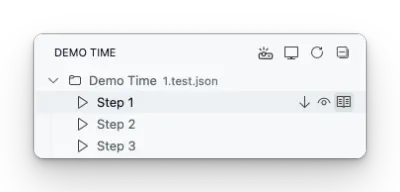
Another way is to click on the Notes status bar action to open the notes for the current demo.
Automatically showing notes on trigger
By default, the notes for a demo are hidden until you click on the book icon to view them. However, you can configure the demo to automatically show the notes when the demo is triggered. To do this, set the showOnTrigger property in the notes object to true.
When the showOnTrigger property is set to true, the notes will automatically appear when the demo is triggered, providing additional context and information for the audience.
Notes in your slides
When a scene opens a deck of slides, one notes file for the whole scene means scrolling to find the part for the current slide. Instead, you can write the notes of each slide in the slide markdown, in a <!-- notes block:
# Why Demo Time
- Point one- Point two
<!-- notesMention the conference from last year.Pause for questions here.-->
---
# How it works- The notes block starts with
<!-- notesat the start of a line and ends with-->. Put the-->on its own line, or at the end of the last line of the notes. - The notes are markdown, so you can use lists, bold text, links, and so on.
- The notes block is removed from the slide, so your audience never sees it. A
---inside the notes does not start a new slide. - A short note fits on one line:
<!-- notes Ask who used it before -->. - When a slide has more than one notes block, the notes are combined.
- Regular HTML comments (
<!-- ... -->) and notes blocks inside code blocks stay part of the slide.
Adding notes from the slide preview
You can also add or edit the notes of the current slide from the slide preview. Open the More actions (…) menu of the slide controls and select Add speaker notes or Edit speaker notes. Write your notes and select Save (or press Cmd+Enter / Ctrl+Enter). This writes the notes in the <!-- notes --> block of the slide and saves the file. Save empty notes to remove the block.
Which notes are shown
The presenter view and the remote control show the notes of the current slide, and update on every slide change. When the slide has no notes, they show the notes file of the scene.
A scene that doesn’t open slides always shows its own notes file, even when the slide preview is still open.
Speaker notes in the PDF export
Set the demoTime.pdfExport.notes setting to add the slide notes to the PDF export: below each slide (below), or on a separate page after each slide (page).
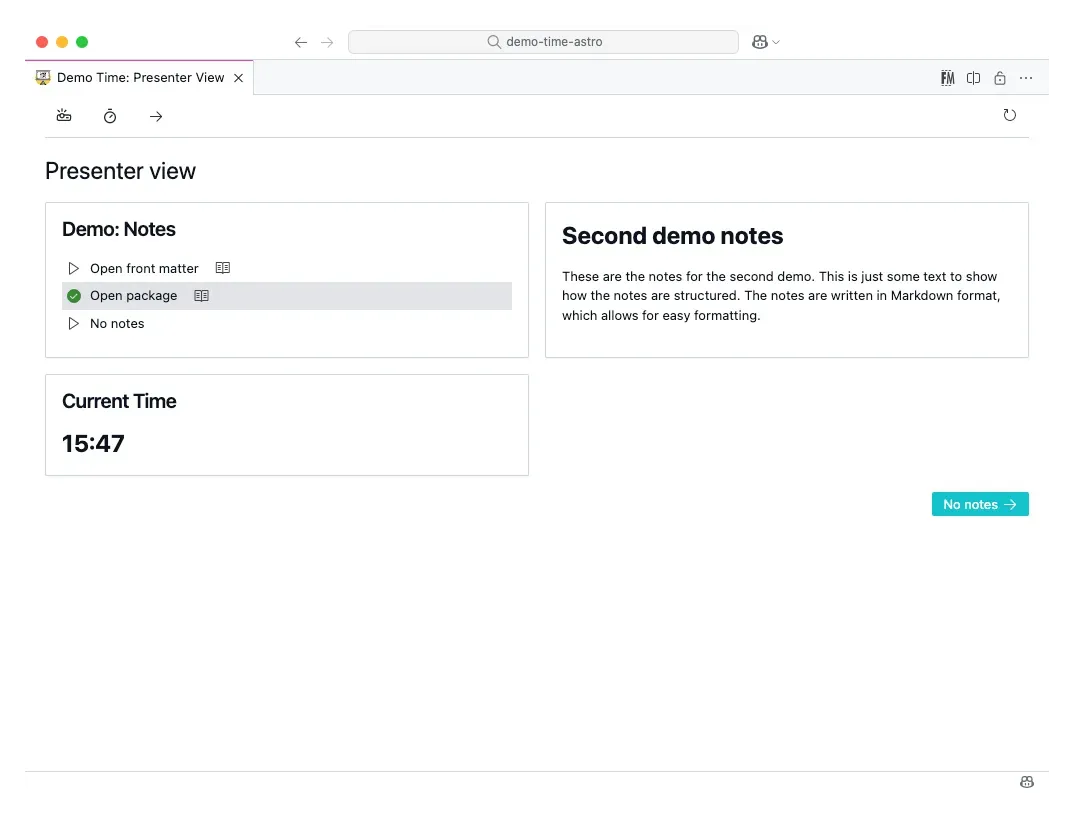
Notes on the presenter view
If you are using the presenter view, the notes will automatically be shown. This allows you to see the notes while presenting without showing them to your audience. For a slide with its own notes, the title of the notes card shows the slide number.